
Contents
Introduction
All brands should review their time of day delivery and performance to understand at what times of the day they’re serving ads, if this meets business or promotion requirements, or if there’s opportunities to set exclusions on sub-optimal time of day performance.
Almost all DSPs will offer time of day targeting controls and reporting. However, there’s a pitfall in time of day reporting which impacts brands operating in multiple markets or in a multi-time zone market – time of day in platform reports are set to a single time zone based on the advertiser or account settings.
This creates a challenge in knowing the true time of day your ads served based on the user location which can lead to false observations and incorrect actions taken on your media plans and campaign activation.
In this article I’ll get into details of how time zone settings and reporting works in DSPs and how to report accurate time of day performance.
Time zone settings
When setting up an advertiser in the DSP, it’s imperative that you select the correct time zone in the settings as it can determine how your dayparting targeting works, campaign flight times, and the time zone which your reports will be configured to.
If you’re a single-market brand, incorrect application of the time zone can result in mis-reporting delivery if you don’t apply the steps I’ve outlined in this article each time you run time of day analysis – requiring more time and resource.
If you’re a multi-market brand, it’s best practice to create separate advertisers for each of your markets. If you don’t do this, you will need to make a considered choice of what time zone you want your reports to configure to and apply steps in this article.
For example, if you operate in the UK + Western Europe, select a time zone from a Western European country which will be applicable to as many of your markets as possible.
IANA time zone format
The time zone in DSPs follows the IANA database naming structure, which is a standardised database used in many computer programs and operating systems. The convention for these names is “Area/Location”, an example being “America/New_York”.
The IANA database assigns time zone names to UTC offsets (both in Standard Time and Daylight-Saving Time) globally, providing the time difference between the Area/Location and UTC time.
You’ll see this naming structure used when selecting time zone in advertiser settings and how the time zone is named in platform reports.
This is important to know as if you’re advertising globally it may be best to reference the IANA database to produce an automated solution that can scale via business intelligence tools.
Otherwise, if you’re looking for a one-time analysis of time of day, or are working at a smaller scale, then it’s simple enough to manually adjust the time zones knowing how the IANA Time Zone format works.
What to include in time of day reports
To accurately adjust the time of day based on location, you’ll need to add the dimensions listed below in your report. If you don’t include these breakdowns, you cannot know what time zone the report is configured in and how to adjust the time of day based on location.
- Time Zone
- Country
- Region*
- Date*
- Time of Day
*Region and Date optional caveats
Region is an optional breakdown based on whether you’re serving in a country that has multiple time zones or not. For example, in the US there are 6 standard time zones and including region will breakdown the results by US state so you can adjust the time of day according to each state time zone.
Date is an optional breakdown depending on the time period you’re reviewing and the time zones you’re adjusting between. The time difference between two countries may not be static all year round, it can change as Standard Time and Daylight-Saving Time periods differ between countries. If for example you’re adjusting a US reported time zone to the UK time zone, during the period where the clocks change, your time difference may change from 5 to 6hours. This is because the US and UK clock changes don’t occur on the same dates.
Add all other necessary breakdowns and metrics in addition to the above. Note that other fields may become non-compatible when you select the dimensions above.
These dimensions are commonly available in DSP reporting and can be combined in a single DSP report.
| DSP | Time Zone | Country | Region | Date | Time of day |
| DV360 | Yes | Yes | Yes | Yes | Yes |
| The Trade Desk | Yes | Yes | Yes | Yes | Yes |
| Amazon* | Yes | Yes | Yes | Yes | Yes |
| Yahoo** | No | Yes | Yes | No | Yes |
*At the time of writing (Jan 2026) – Amazon is currently limited to a 14-day lookback window.
** Time zone isn’t an available breakdown, however, you can select the time zone you want to report in (see next section). Date unfortunately isn’t compatible with the time of day dimension which limits making adjustments according to clock change dates.
How to create time of day reports
DV360
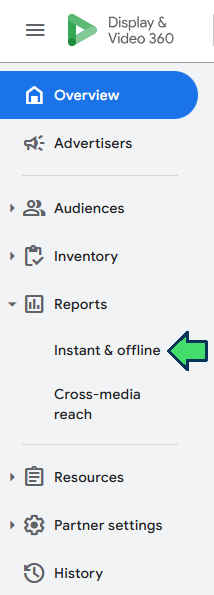
Navigate to Reports > Instant & offline 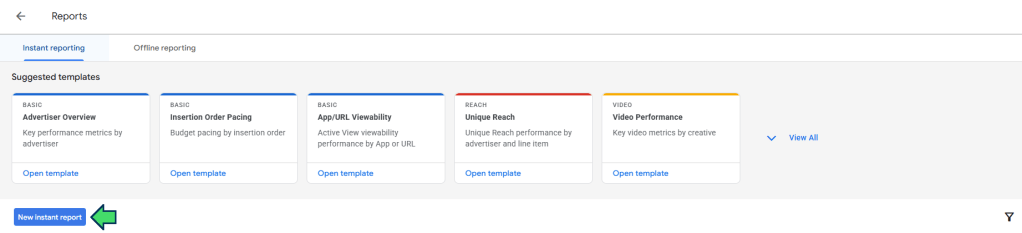
Click new instant report 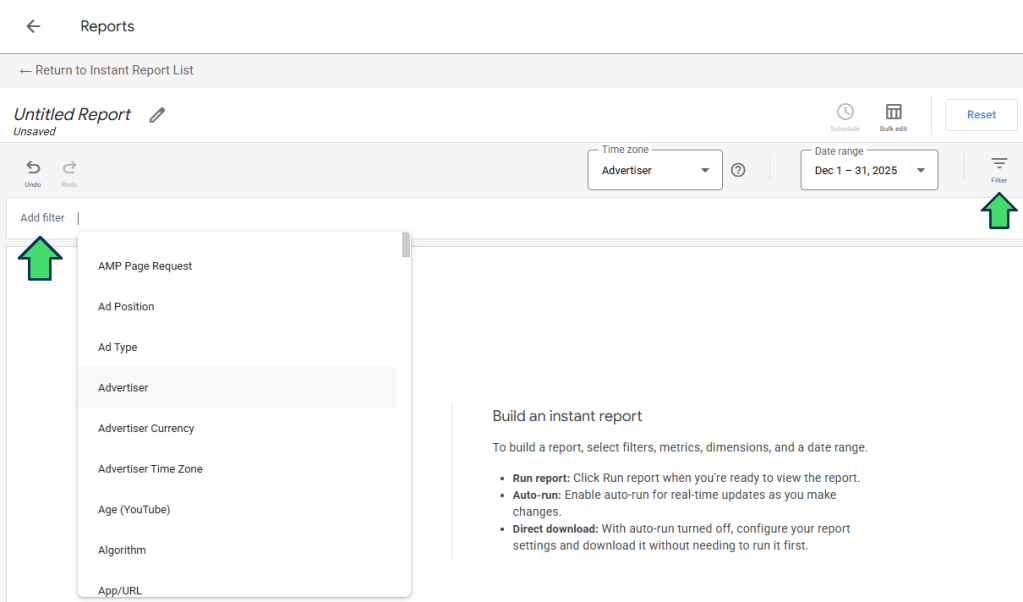
Filter for either the partner or advertiser you’re analysing 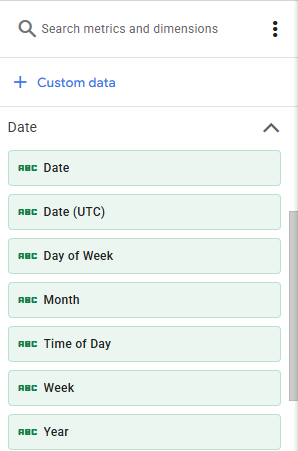
Refer to the Date dropdown to add Time of Day and Date breakdowns 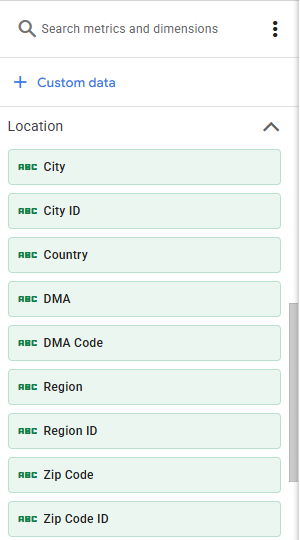
Refer to the Location dropdown to add Country and Region breakdowns 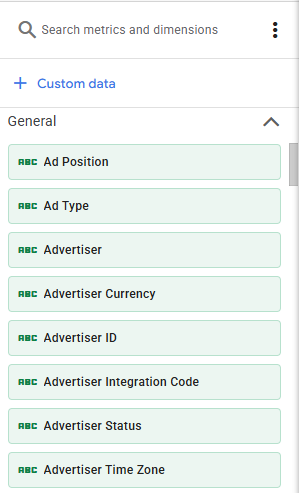
Refer to the General dropdown to add Advertiser time zone 
(A) choose the date range (B) click run report for an instant view of the data (C) create a schedule for your report if required (D) save the report (E) download the report 
Here’s the limitation – there is a time zone setting in the report builder which is automatically configured to the advertiser time zone you’ve set – the only other option you can select is UTC and even this may be prohibited 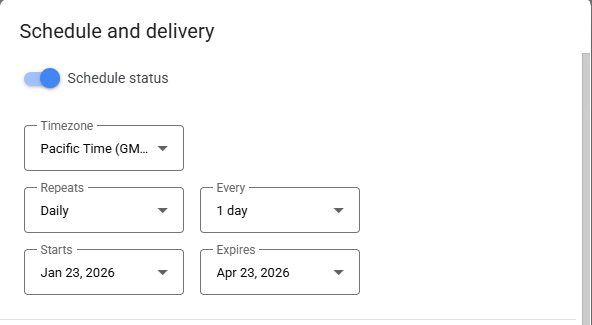
The time zone in the schedule setting refers to the time when the report will automatically run and deliver, not the time zone you data reports in
The Trade Desk

Navigate to reports 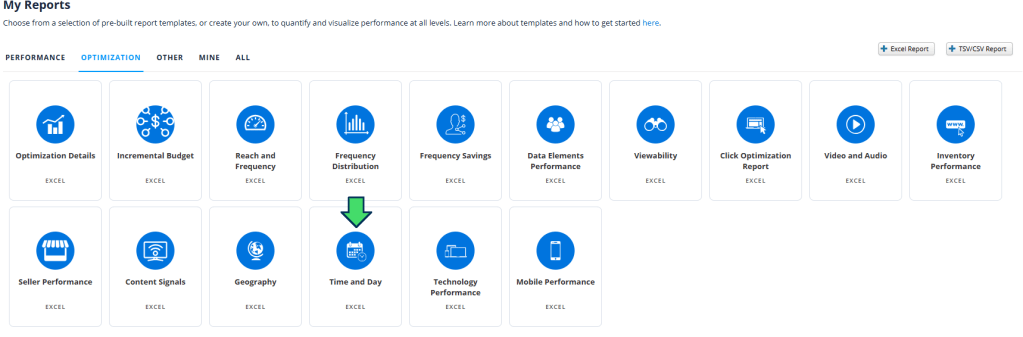
There is a Time and Day pre-built template you can use in the Optimization category of reports 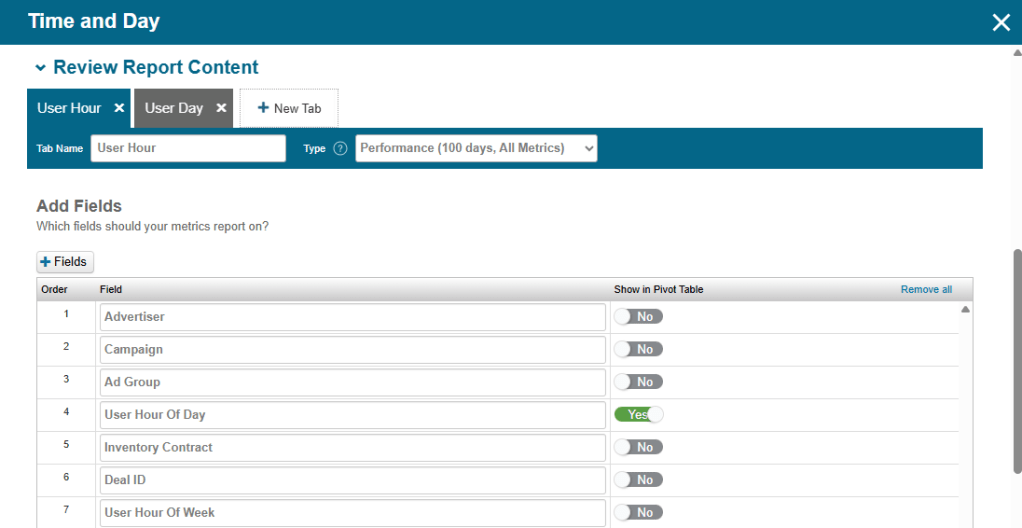
This auto-selects fields and metrics to create a single report with two sheets that compose of time of day and day of week reports. Add/remove fields or metrics to create your own report. This template doesn’t automatically include location data or the time zone – so you’ll need to add these in. 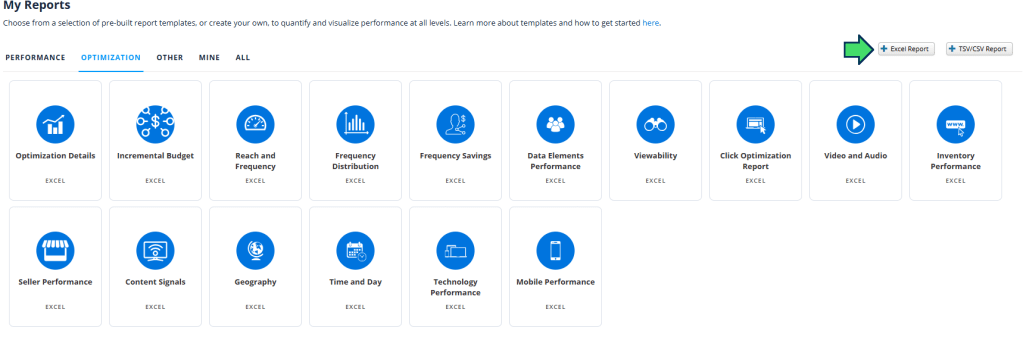
Alternatively, you can create your own custom report by clicking the +Excel or +TSV/CSV report option 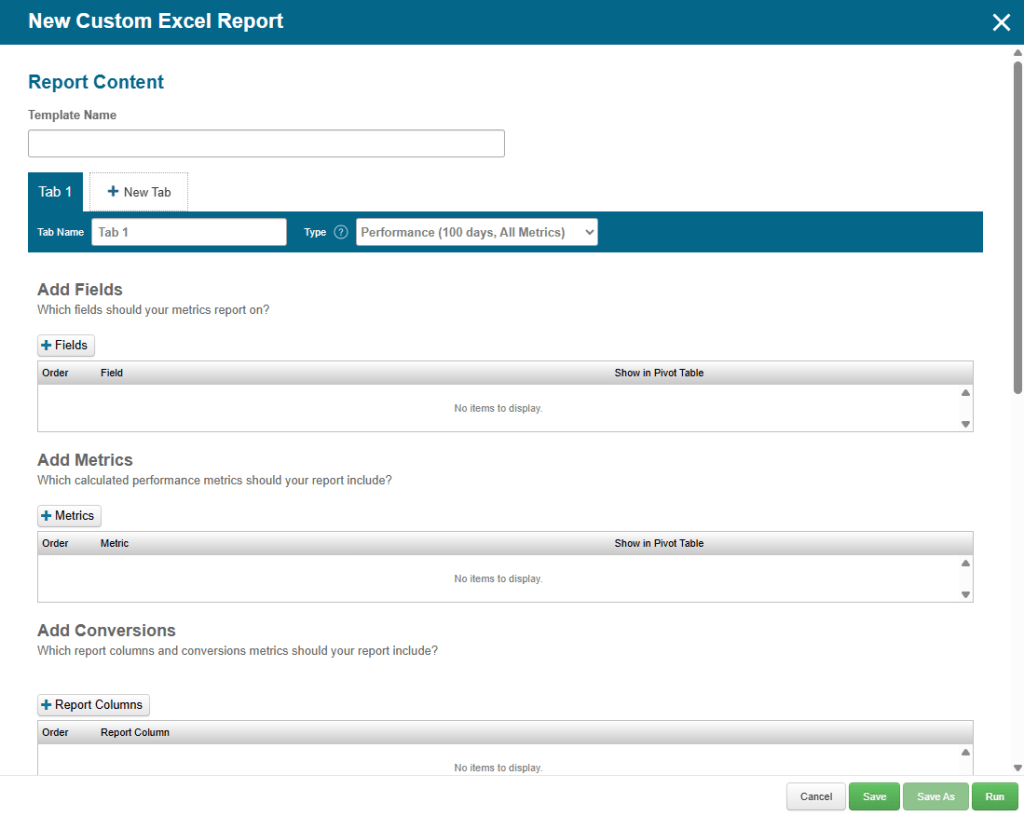
Add fields and metrics to build your report. Search and add User hour of day, Timezone, Country, Region and Date breakdowns in the field selection. 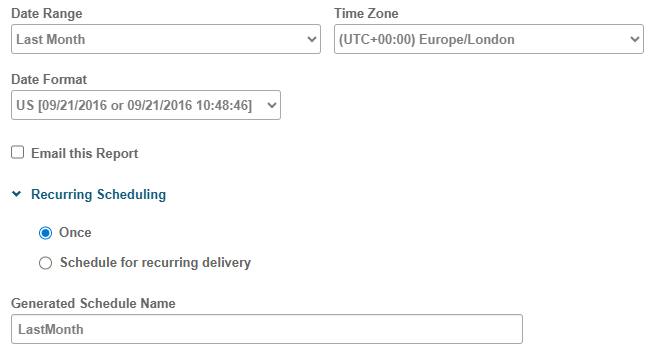
Select the date range and your scheduling settings 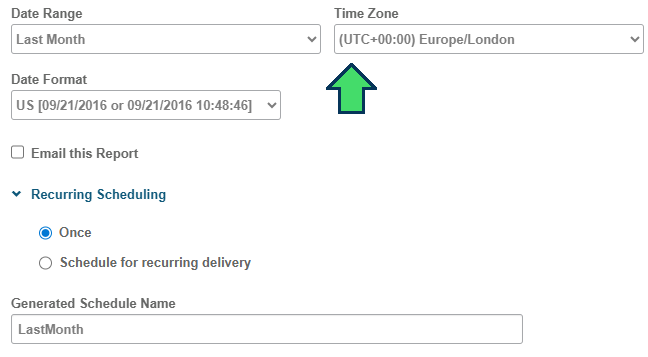
TTD has an excellent feature where you can select a Time Zone for the report which will configure the time of day data. There is a range of time zones to select from, but in a rare case, it may not cover the time zone you need to adjust the report to, so you’ll need to apply the steps listed later in this article. Additionally, if you activate in a market that has multiple time zones, you’ll still need to adjust the time of day based on the region, which this setting doesn’t cover 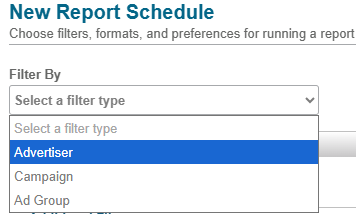
Filter for the advertiser or campaigns you want to analyse, save and run your report
Amazon
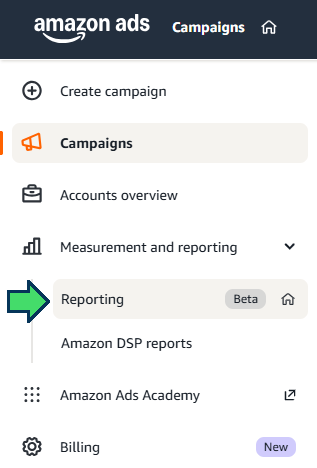
Navigate to Measurement and reporting > Reporting (Beta). Time of day is available in the Amazon DSP reports option, but the Beta option enables you to combine more dimensions and metrics in a single report. 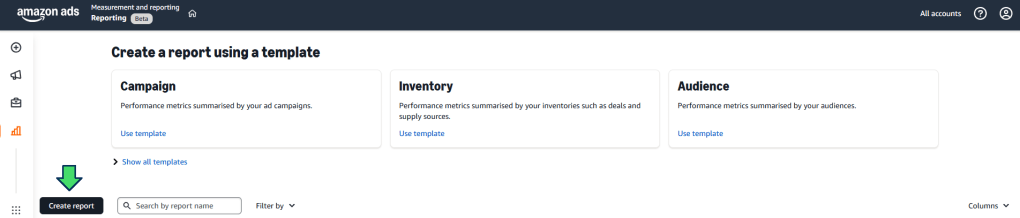
Click create report 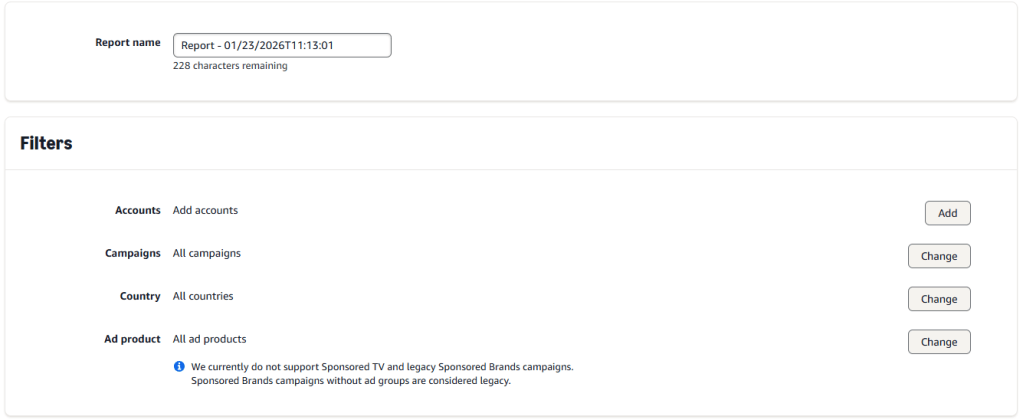
Give your report a name and add the accounts or campaigns you want to analyse 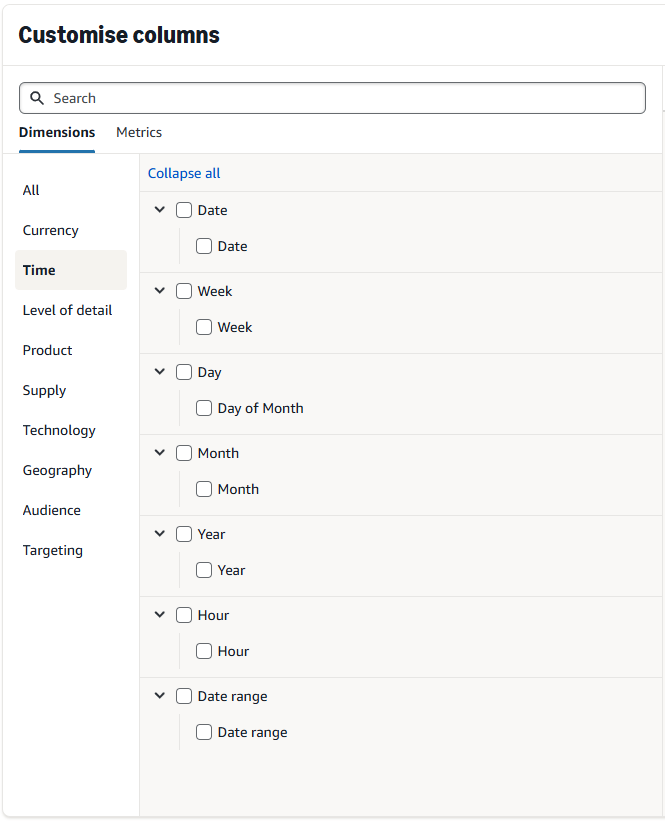
Add hour and date breakdowns under the Time category 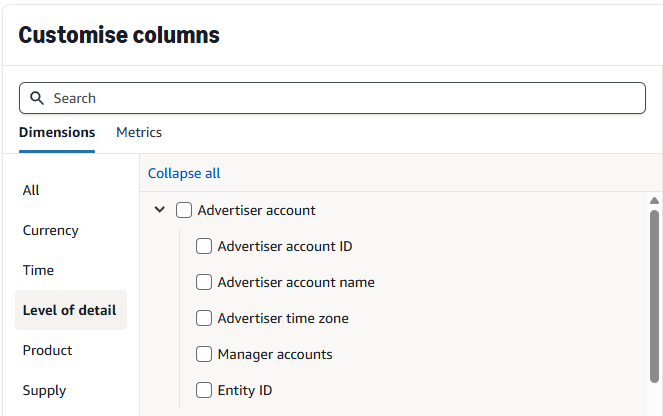
Add advertiser time zone under the Level of detail category 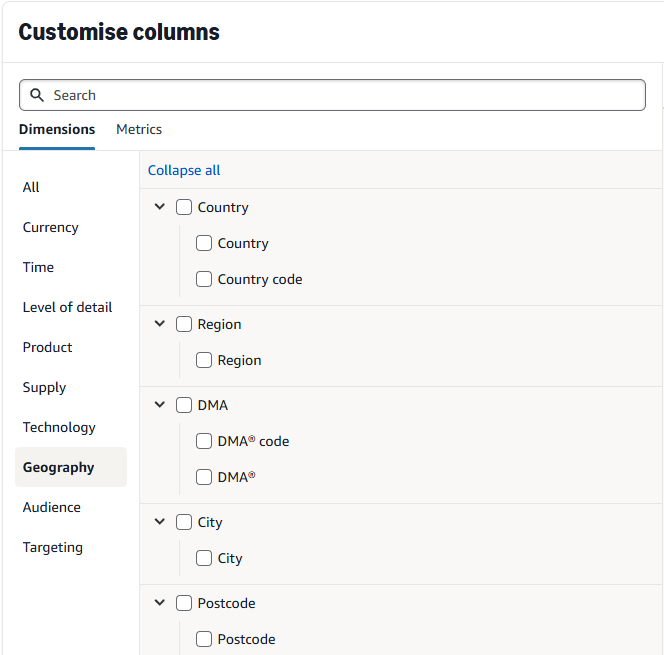
Add country and region breakdowns under the Geography category 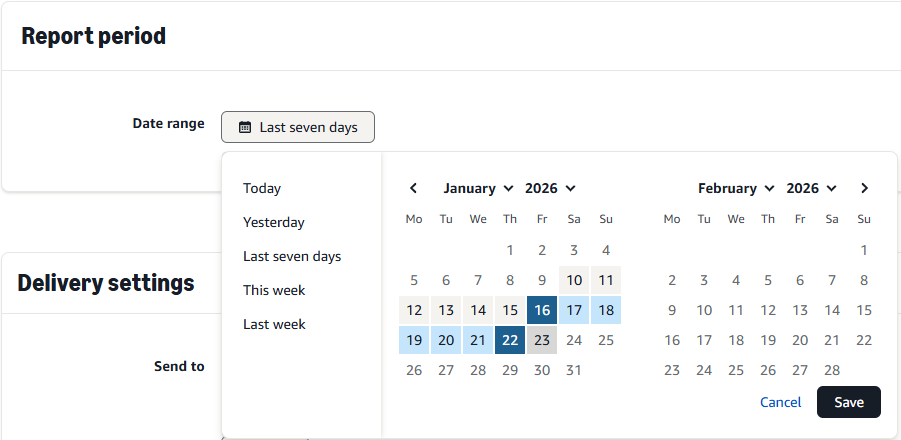
Select the date range – note that this is currently limited to a 14-day lookback window – hopefully in future this increases. You can pull reports every 14 days and aggregate to obtain a longer lookback. 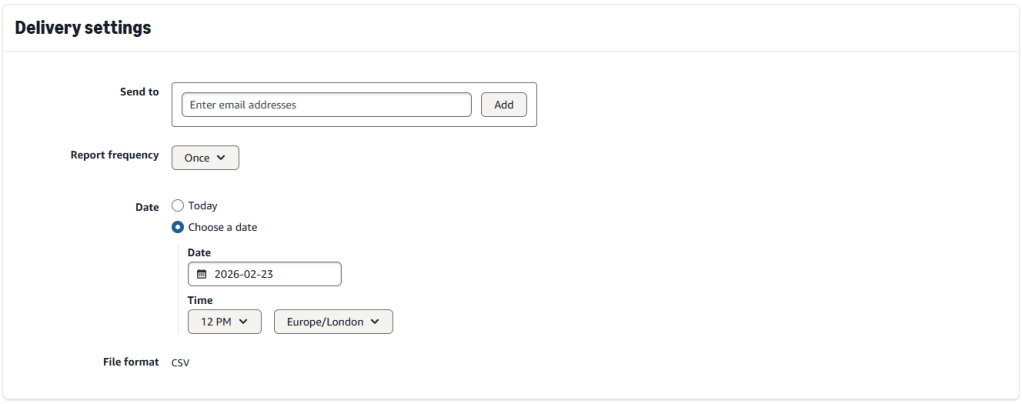
Configure your delivery settings. You can select a time zone here which configures the time which the reports are automatically ran and delivered but doesn’t configure the data in the report
Yahoo
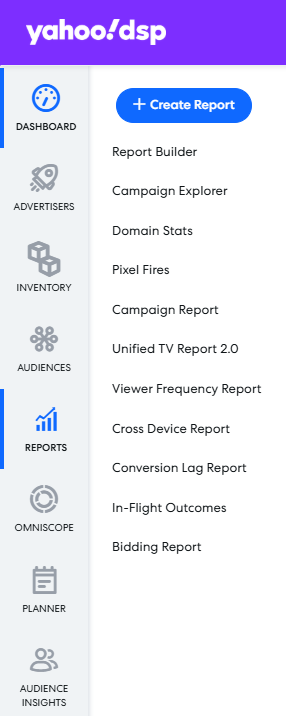
Navigate to Reports > Create report 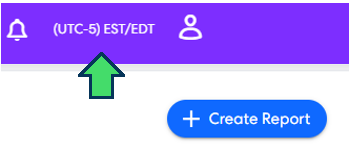
Update the time zone you’re viewing the data in 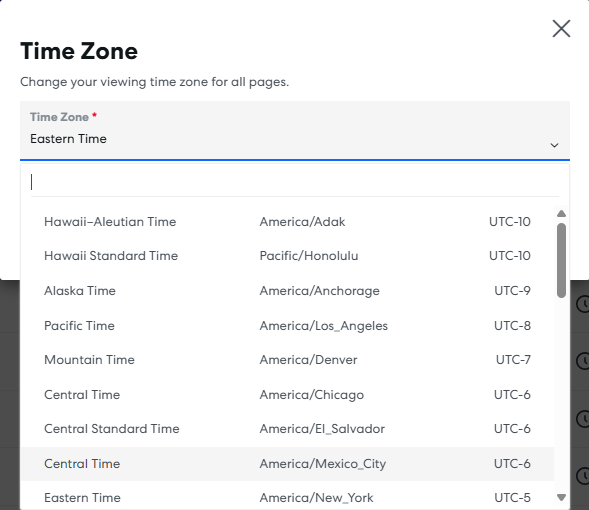
Select the time zone which you want the hours of the day to report in. This will reload the interface, so it’s better to do this step first. There is a range of time zones to select from, but in a rare case, it may not cover the time zone you need to adjust the report to, so you’ll need to apply the steps listed later in this article. Additionally, if you activate in a market that has multiple time zones, you’ll still need to adjust the time of day based on the region, which this setting doesn’t cover. 
Click create report 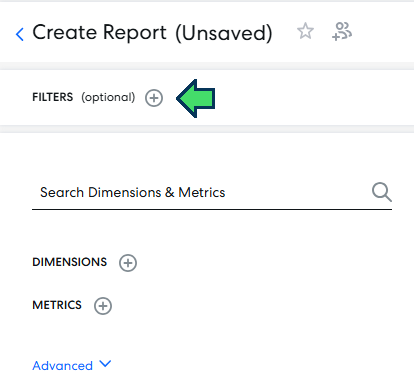
Filter the report by advertiser or campaign if required 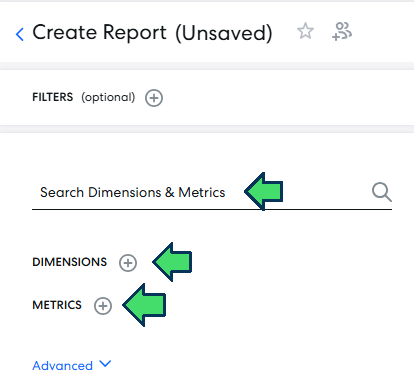
Add Hour of the day and Country to your report along with all other fields you want to include. Unfortunately, you cannot combine Day or Date with Hour of the day which means you’re limited in adjusting hours in your reports according to clock change dates. Time zone isn’t a breakdown but you’ve already configured the time zone of the data in the second step. 
Save your report – I’d recommend including the time zone in your report name 
If you want to schedule your report, click the three dots 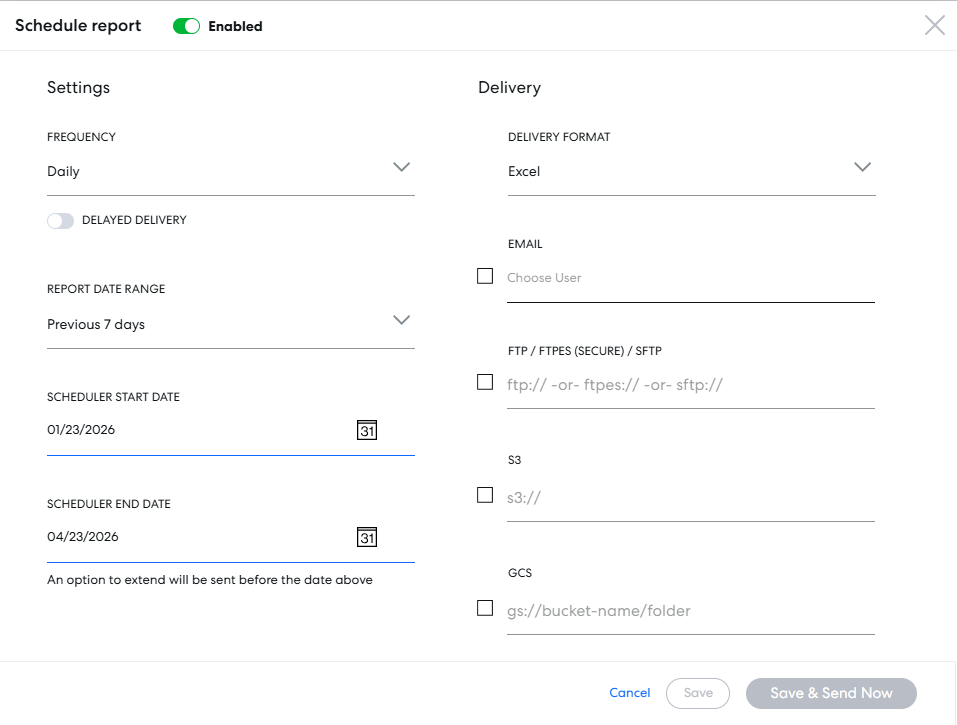
Set your schedule settings and download your report
Steps to adjusting time zones in reports
Manual approach
Using Time Zone, Location, and Time of day breakdowns in your reports, you can manually correct the time of day based on the location where the impression served. Remember that on TTD or Yahoo you can change the time zone before you pull the report, but if the time zone you want to adjust to isn’t an available option, or you’re in a market with multiple time zones, continue reading.
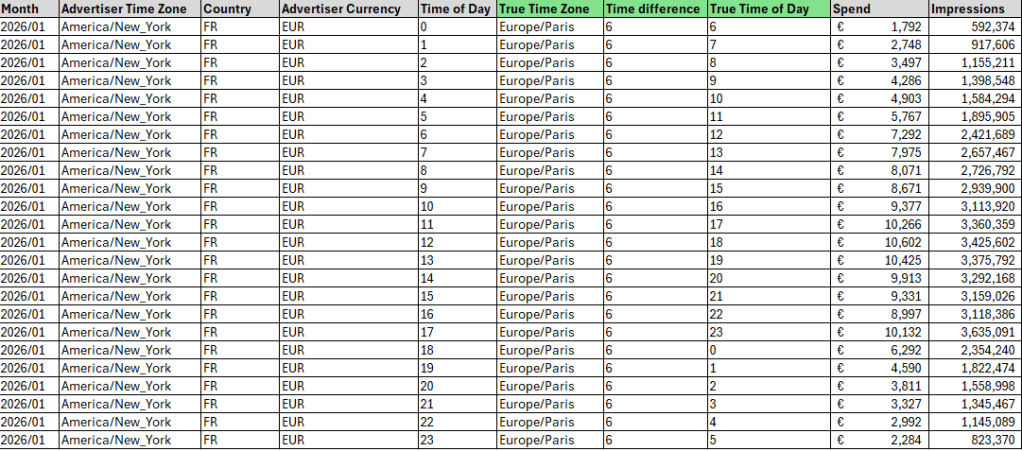
I’d suggest adding new columns in your reports for the true time zone and time of day for the location and keep the original reported columns – this creates a trail in case you need to query how the time of day was generated accurately.
See an example below where the time of day has been adjusted from New York to Paris time zone.
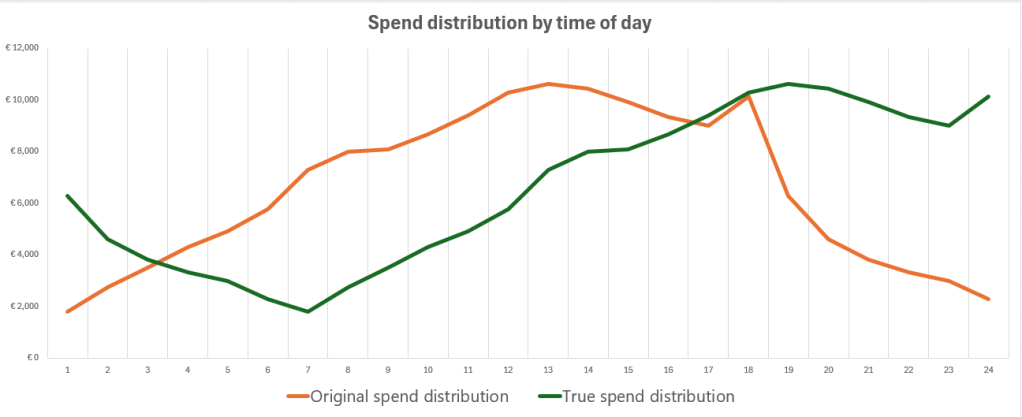
The distribution of spend by time of day completely changes after fixing the time of day reporting. Originally the data shows spend dropping significantly in the evening hours (orange line) which would be considered to be prime time of the day for performance. However, the true time of day data (green line) shows the drop of spend is actually in the early hours of the morning, picking back up at 7am – this is what we would expect to see.
Automated approach
If you’re continuously generating time of day reports for a global account, you can reference the IANA database to build an automated calculation that adjusts time zones based on the IANA time zone in your report, the UTC offset data in the IANA database, and the location in your report. See an example below:
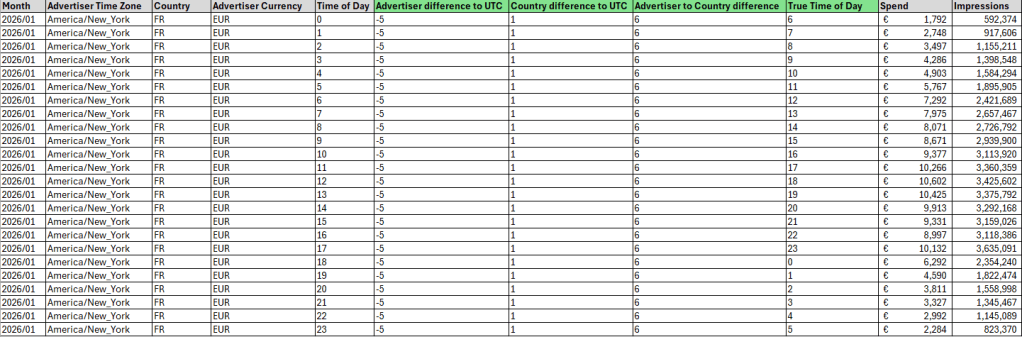
Slightly more complex, but the same result. This method uses the IANA database as reference data to pull in the advertiser time zone difference to UTC & the country (where impressions delivered) time difference to UTC. From here you can calculate the time difference between the advertiser time zone and the delivered country. See an example of what the reference data would look like:
Please note that for this method to work, time zone is required in the reports which isn’t available directly from TTD or Yahoo platform.
Clock change impacts
Remember that clock changes for Standard Time and Daylight-Saving Time can occur on different dates between countries – I’ve found this website a good reference for checking the dates. You will need to factor this and include date in your reports if analysing a period where the clocks change. You may also find that an hour of the day is skipped in the platform report on the hour and date when the clock changed.
Multiple-time zone impacts
If you’re analysing a market with multiple time zones, you can apply the same methods above by including region in your reports. Your IANA reference data will need to include IANA time zones and offsets by region.
Time of day targeting
Daypart targeting is a standard targeting feature in each DSP and you can set these either at campaign/insertion order or at the line item level. Line items will automatically inherit daypart targeting applied at campaign/insertion order level – so set it at this level if you want to apply daypart targeting across all your activations.
Fortunately, daypart targeting works similarly across each DSP – by default, all days of the week and hours of the day will be targeted, but you have the option to switch off days or hours. See an example below for The Trade Desk.
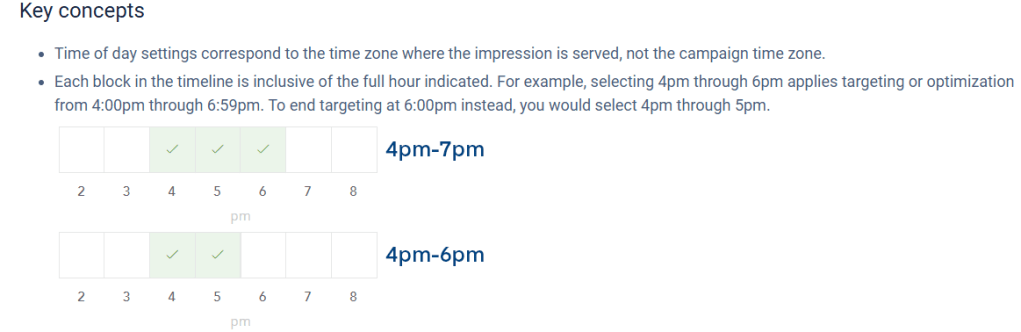
A few important things here to note, which apply to all DSPs:
- Platforms will deliver impressions based on the user device and time zone – this makes targeting and exclusions much more straight forward than reporting. On DV360 you have the option to switch between local or advertiser time zone targeting – with exception on YouTube where delivery is always to advertiser time zone.
- If you’re applying time of day exclusions, note that each hour is inclusive of the full hour. This is very important to know if you’re applying time of day exclusions – incorrect application can result in delivery on unwanted hours.
Final thoughts
Whilst time of day targeting controls are consistent between the DSPs, it’s interesting to observe that each platform provides different capabilities when it comes to time zone and time of day reporting. It’s important to understand these differences as it may lead to incorrect observations and actions.
Challenges in accurately reporting true time of day will depend on the DSP you’re activating, the market(s) you’re advertising in and the time period you’re analysing. Brands operating in a single market likely won’t need to make any adjustments to reporting, unless they’re operating in a multi-time zone market. Brands operating across many markets will need to take a much more considered approach.
If you need support in navigating these challenges and effectively analysing time of day, or have other reporting challenges feel, free to contact me below.


 Slevin Consulting